やり方
ページをめくる
アイコンを次の日、または前の日へ4種類の方法でめくります。日付の補助関数、動きの軽減、flipCalendarのオプションを説明します。
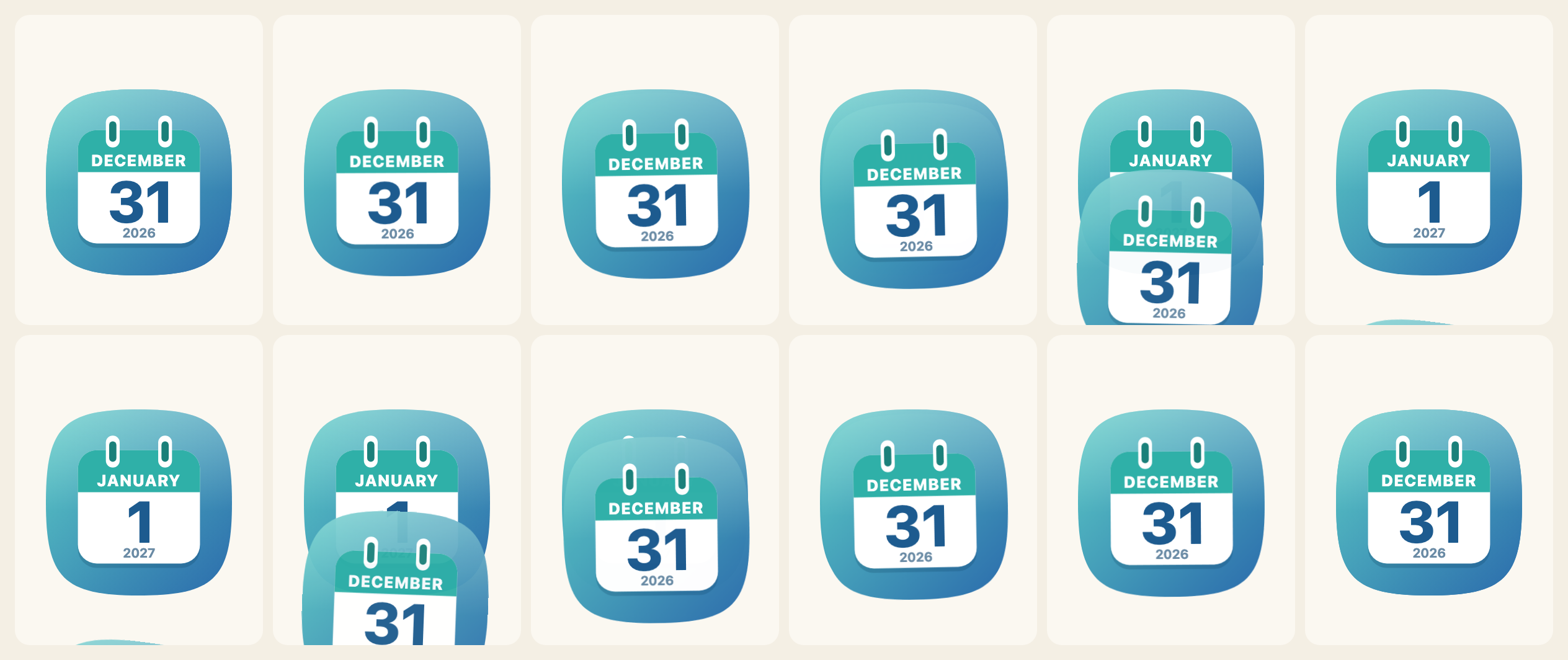
flipCalendarは、要素の中のアイコンを、次の日へ、または前の日へめくります。単独のインポート(@johnmorrisdotca/koyomi-calendars/animate、約3 kB)なので、描いただけのアイコンにはこれが含まれません。Web Animations APIを使うためブラウザーが必要で、ほかには何も要りません。
日付を描く関数を渡します。ライブラリ全体のcalendarIconでも、デザイン1つだけのcalendarIconでもよく、枠、リング、傾き、プリセットなどのオプションも使えます。
使い方
import { flipCalendar, nextDay } from "@johnmorrisdotca/koyomi-calendars/animate";
import { calendarIcon } from "@johnmorrisdotca/koyomi-calendars/themes/squircle";

const element = document.querySelector("#today");
const from = { year: 2026, month: 12, day: 31 };
element.innerHTML = calendarIcon({ ...from });
const shown = await flipCalendar(element, {
  render: (date) => calendarIcon({ ...date }),
  from,
  to: nextDay(from), // 2027-01-01: across the year end
  animation: "tear-down",
});
Promiseは、いま表示している日付で解決します。終わったとき、要素の中身はふつうに描いた1つのアイコンになっているので、後片付けは要りません。めくっている最中にもう一度めくると、最初のめくりはすぐ終わります。
4種類のめくり方
animation | ページの動き |
|---|---|
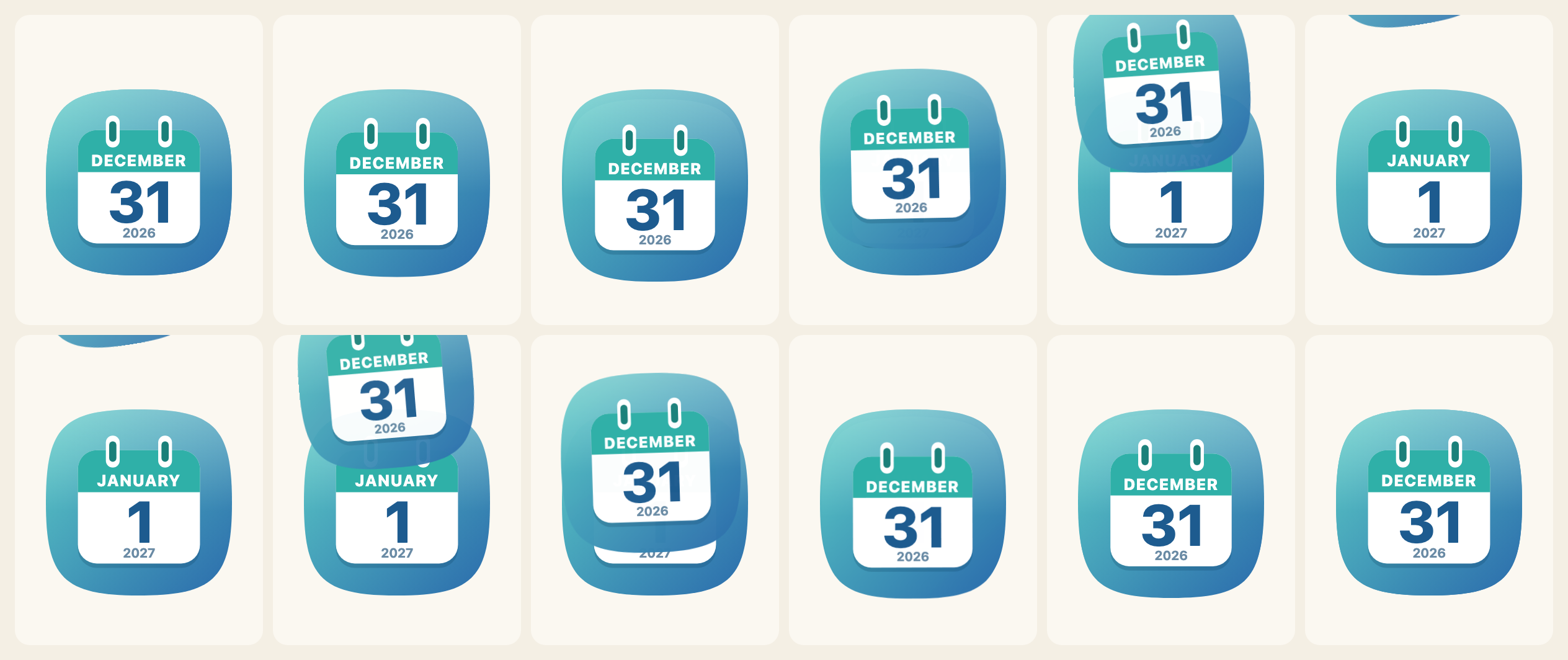
tear-down | 少し引っ張ってから、下へ引きちぎる |
fly-up | 少し沈んでから、上へ飛んでいく |
rip-corner | 左上の角から破り取られ、左上へ去る |
flip-down | 下を軸に、遠近をつけて手前下へ倒れる |
CALENDAR_FLIPSが一覧、CALENDAR_FLIP_LABELSが英語と日本語のラベル、FLIP_KEYFRAMESが各動きのデータ(フレーム、原点、イージング、遠近)で、自分のコードで再生することもできます。
import { CALENDAR_FLIPS, CALENDAR_FLIP_LABELS, FLIP_KEYFRAMES } from "@johnmorrisdotca/koyomi-calendars/animate";

console.log(CALENDAR_FLIPS.join(" "));
console.log(CALENDAR_FLIP_LABELS["rip-corner"].en);
console.log(FLIP_KEYFRAMES["flip-down"].perspective !== undefined, FLIP_KEYFRAMES["tear-down"].frames.length > 1);
// tear-down fly-up rip-corner flip-down
// Rip to a corner
// true true
tear-down fly-up rip-corner flip-down
Rip to a corner
true true戻る場合(toがfromより前)は、同じ動きを逆に再生します。去ったページが元の位置に戻ってきます。アイコン全体がめくられるページなので、円盤やタイルのあるデザインでは、円盤やタイルもいっしょにめくれます。
日付
nextDay、previousDay、addDaysは、月、年、うるう日をまたいで日付を進めます。compareDaysは、2つの日付のどちらが先かを、-1、0、1で返します。
import { addDays, compareDays, nextDay, previousDay } from "@johnmorrisdotca/koyomi-calendars/animate";

console.log(JSON.stringify(nextDay({ year: 2024, month: 2, day: 28 })));
console.log(JSON.stringify(nextDay({ year: 2026, month: 12, day: 31 })));
console.log(JSON.stringify(previousDay({ year: 2027, month: 3, day: 1 })));
console.log(JSON.stringify(addDays({ year: 2026, month: 1, day: 31 }, 30)));
console.log(compareDays({ year: 2026, month: 1, day: 1 }, { year: 2026, month: 1, day: 2 }));
// {"year":2024,"month":2,"day":29}
// {"year":2027,"month":1,"day":1}
// {"year":2027,"month":2,"day":28}
// {"year":2026,"month":3,"day":2}
// 1
{"year":2024,"month":2,"day":29}
{"year":2027,"month":1,"day":1}
{"year":2027,"month":2,"day":28}
{"year":2026,"month":3,"day":2}
1動きの軽減
ユーザーの端末が動きの軽減(prefers-reduced-motion)を求めているときは、新しい日付がそのまま表示されます。reducedMotion()は、そうなっているかどうかを返します。motion: "never"は常にそうし、motion: "always"は設定を無視します。"always"は、めくること自体がページの目的であるときだけ使い、そのことを伝えてください。
オプション
| オプション | |
|---|---|
render | 日付を描いて、SVGを返す関数 |
from、to | { year, month, day }。いま表示している日付と、めくる先の日付 |
animation | CALENDAR_FLIPSのひとつ。初期値はtear-down |
duration | ミリ秒。初期値は650 |
motion | "auto"(初期値)、"never"、"always" |
毎日のページ
今日を表示して、日付が変わったらめくるページは、数行で作れます。日付は自分のコードで読み取ります。ライブラリは時計を読みません。
import { flipCalendar, nextDay } from "@johnmorrisdotca/koyomi-calendars/animate";
import { calendarIcon } from "@johnmorrisdotca/koyomi-calendars/themes/plain";

const host = document.querySelector("#today");
let shown = { year: 2026, month: 11, day: 2 };
host.innerHTML = calendarIcon({ ...shown });

document.querySelector("#tomorrow").addEventListener("click", async () => {
  shown = await flipCalendar(host, { render: (date) => calendarIcon({ ...date }), from: shown, to: nextDay(shown), animation: "fly-up" });
});この日本語は、まだ日本語を母語とする方の確認を受けていません。訂正を歓迎します。